
A scoreboard is the single most-watched graphic on any sports broadcast. Viewers glance at it constantly to check the time, the score, and the period, which means the moment it updates is one of the most important visual beats in the entire stream. A well-designed GOAL effect, the short animation that plays when a team scores, turns a routine score update into a moment that matches the excitement happening on the pitch or court. This guide explains, step by step, how to design a scoreboard overlay with a custom GOAL effect using the Livenow Overlay Designer, then bring it into the Livenow app to trigger live during a broadcast.
Whether you are streaming football, basketball, or another team sport, this workflow covers layout, animation settings, color, and live triggering, all from a mobile-first toolset that does not require a desktop editor or a production team.
What is a scoreboard GOAL effect?
A scoreboard GOAL effect is a short animation triggered on a live streaming overlay whenever a team scores. It typically includes a visual transition, such as a flip, slide, or glow animation, combined with an updated score number, so viewers see a clear, celebratory confirmation of the goal directly on the broadcast screen in real time.
What a GOAL Effect Adds to a Sports Broadcast
A static scoreboard that simply changes a number from 0 to 1 does the job, but it does not capture attention. A GOAL effect adds motion, color, and often a short celebratory animation at the exact moment a score changes, which draws the viewer’s eye back to the screen even if they were looking away from the game for a second.
In the Livenow Overlay Designer, the GOAL effect is controlled through the Score Animation setting inside Overlay Settings. Broadcasters can choose from multiple animation styles, including Flip, Goal – Long board, Goal – Team board, Goal – Slide score, Cyber Glitch, Digit Split, Firework, and Energy Ring, then pair the animation with a customizable on-screen GOAL text element that appears briefly whenever the score updates.
This kind of real-time visual confirmation matters more than it might seem. According to MoldStud’s research on sports app engagement, engagement with real-time content can increase by up to 70 percent during significant match moments such as goals, and platforms offering instant, interactive updates see engagement rates as much as 45 percent higher during live events compared to static score displays. A well-timed GOAL effect on a livestream overlay is a simple way to capture that same spike in attention.
(source: MoldStud – “Top 5 Sports Apps Dominating Live Score Updates – In-Depth Case Studies”)
Where a GOAL Effect Fits Into Your Overlay Setup
Before building a GOAL effect, it helps to understand where it sits inside a broader scoreboard design. Livenow’s scoreboard templates are organized by sport, including Football, Football (PEN), American Football, Futsal, Volleyball, Pickleball, and Badminton, so the first decision is choosing a template that already matches your sport, or starting from a blank canvas if you prefer full creative control.
If you have already read Livenow’s guide on designing a custom overlay or the dedicated article on free scoreboard overlays for live streaming, this tutorial builds directly on that foundation, focusing specifically on the animation layer that plays when a score changes.
What You Need Before Starting
- A Livenow account, accessible from the Overlay Designer at overlay.livenow.one
- The Livenow mobile app installed on the device you plan to stream from
- Team names, logos, and jersey colors ready to input into the template
- A stable internet connection for the browser-based design step
Step-by-Step: Designing the Scoreboard and GOAL Effect
The design process happens entirely inside the browser-based Overlay Designer before anything is brought into the mobile app.
Step 1: Open Scoreboard Design and Choose a Template
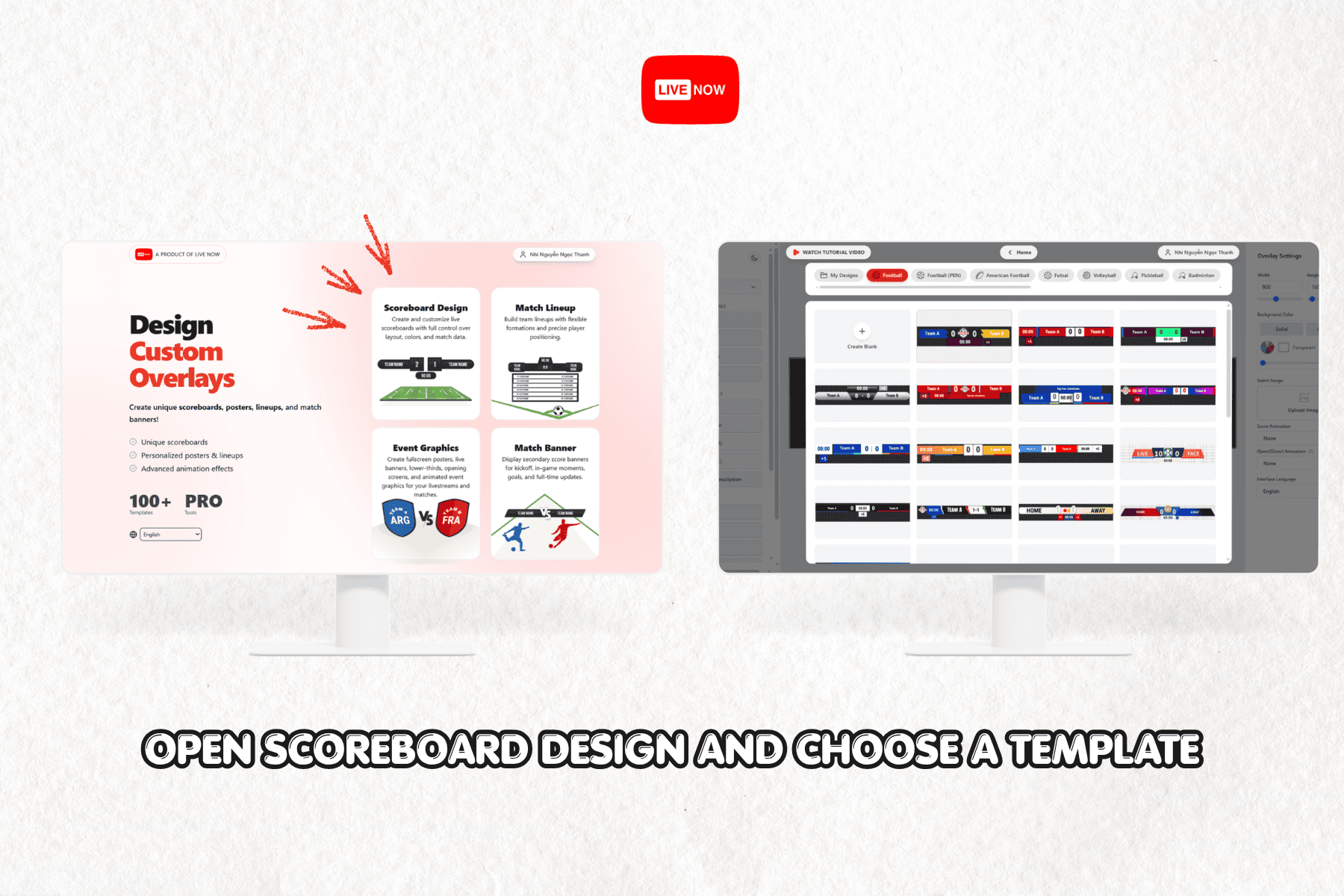
Go to overlay.livenow.one and select Scoreboard Design. From here, choose a sport category, such as Football, then browse the available scoreboard templates. Each template shows team name placeholders, a score display, and a match clock. Select Create Blank if you want to design your own layout from scratch, or click an existing template to use it as your starting point.
Step 2: Open Overlay Settings and Locate Score Animation
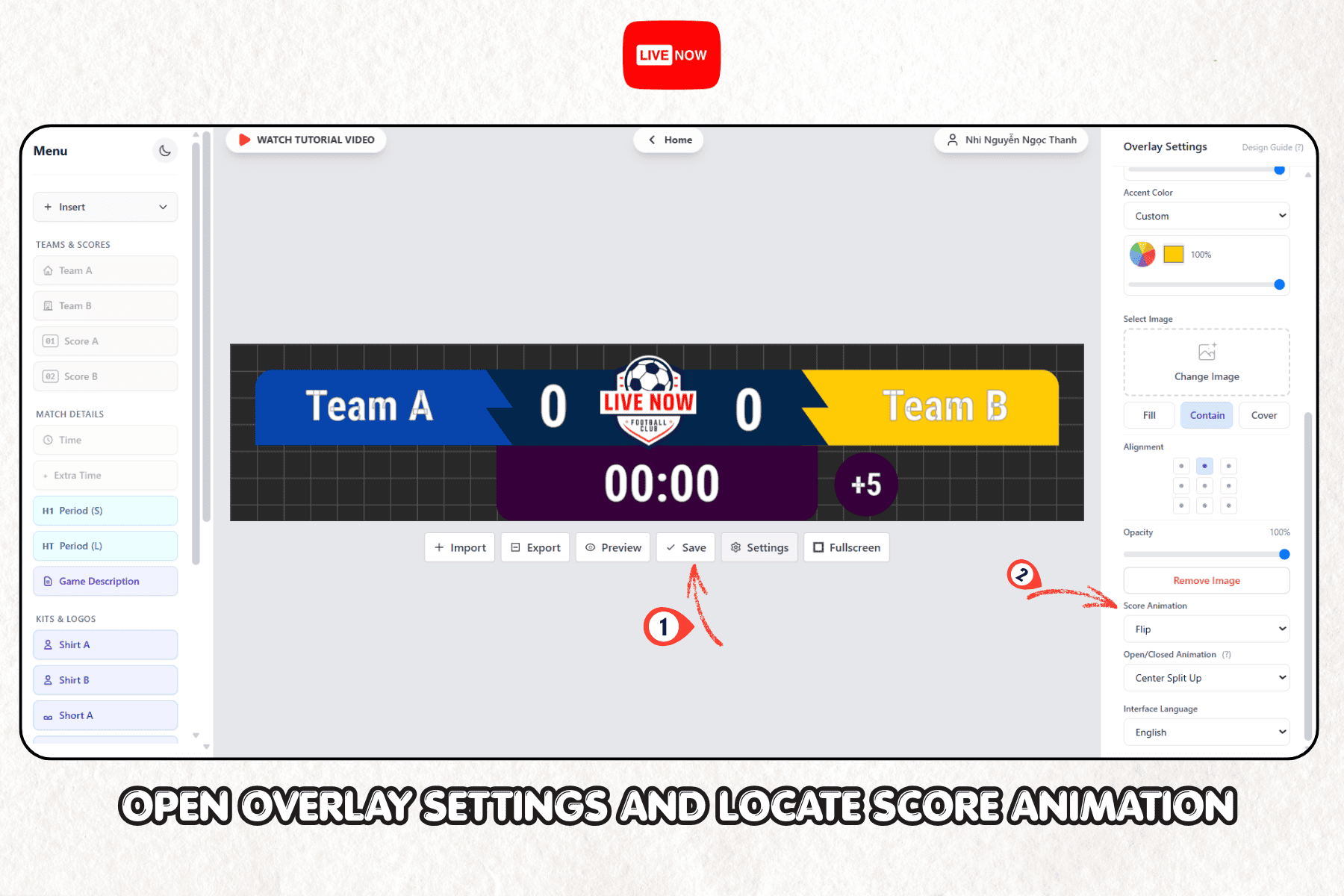
Once a template is loaded, open the Overlay Settings panel on the right side of the editor. Scroll down to the Score Animation dropdown. This is the control that determines what happens visually the moment a score updates. Click the dropdown to see all available animation styles.
Step 3: Choose the Right GOAL Animation Style
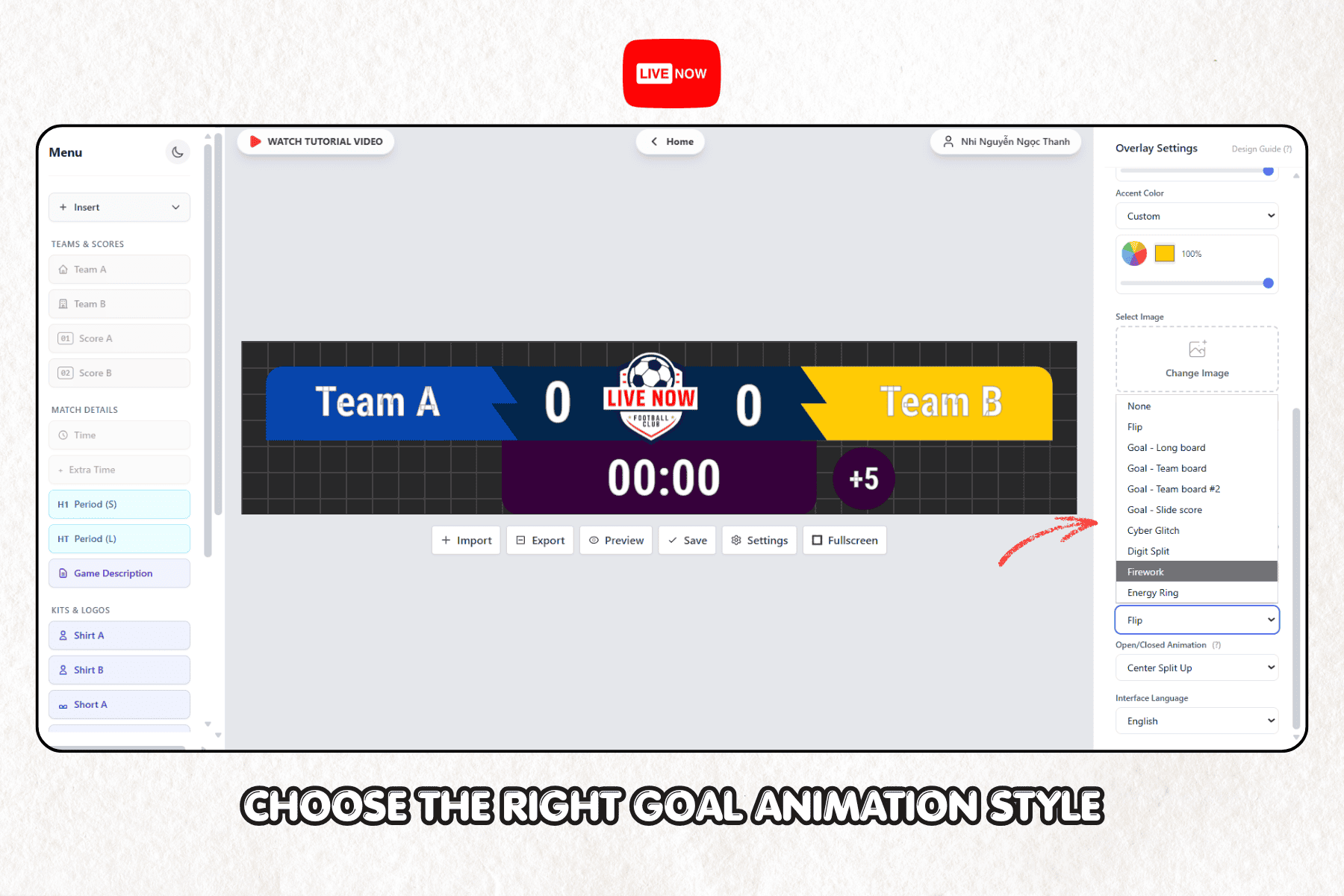
The Score Animation menu includes several distinct options, each suited to a different broadcast style:
- Flip: a clean, quick digit flip, well suited to minimalist scoreboard designs
- Goal – Long board: a wide banner-style celebration, ideal for football streams with more screen space
- Goal – Team board: a team-branded animation that highlights the scoring side specifically
- Goal – Team board #2: an alternate layout variation of the team board style
- Goal – Slide score: a sliding transition effect for the updated number
- Cyber Glitch: a modern, high-energy glitch transition, popular for esports-style broadcasts
- Digit Split: a split-reveal animation for the score digit
- Firework: a celebratory animation with a festive visual style
- Energy Ring: a glowing ring effect that pulses around the score on update
Select the option that best matches your broadcast’s tone. A youth league match and a professional tournament final may call for very different animation energy.
Explore all available animation styles yourself. Open the Overlay Designer and test each GOAL effect before your next broadcast.
Step 4: Customize the GOAL Text Element
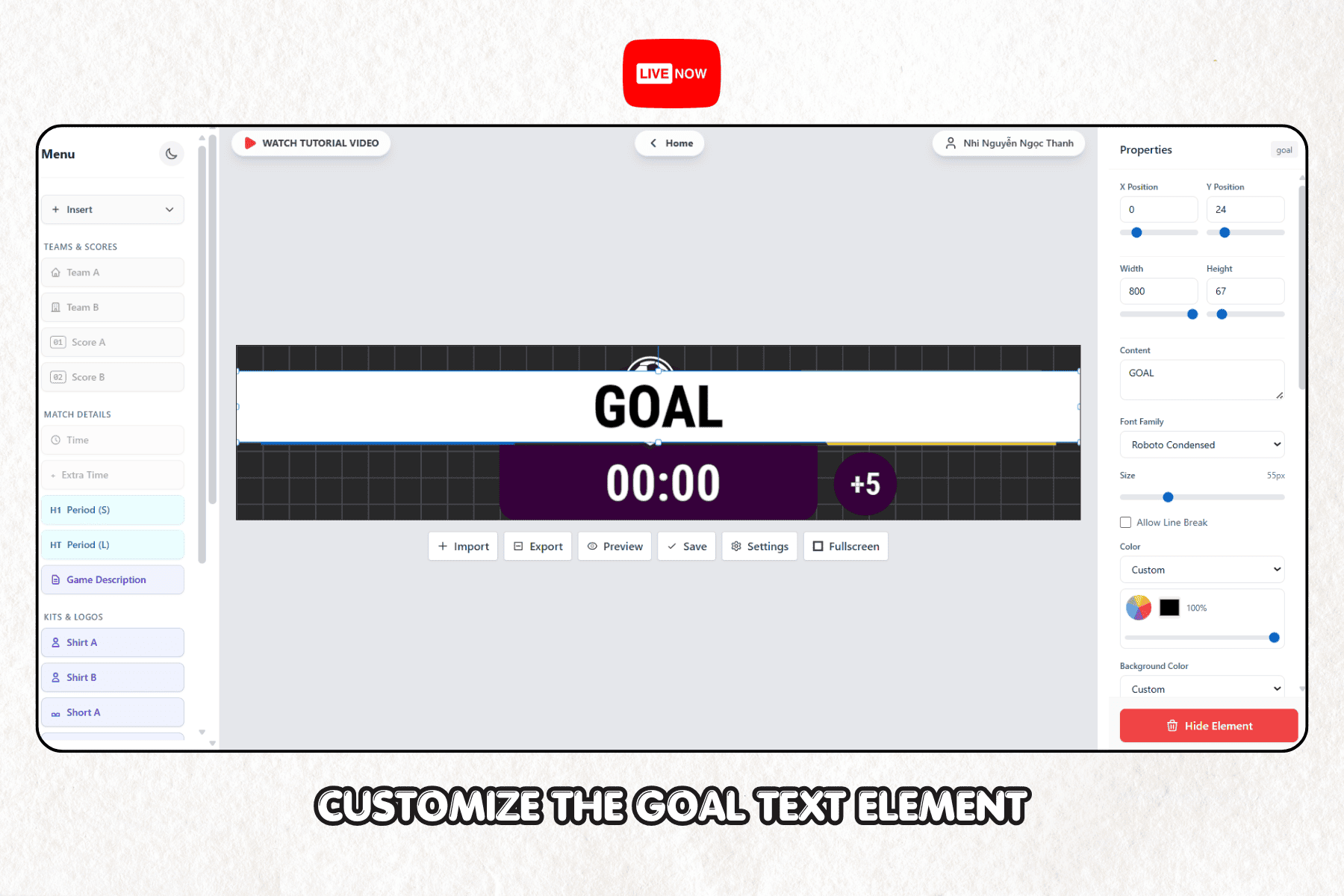
Beyond the score animation itself, most templates include a dedicated GOAL text element that appears on screen during the celebration. Click on this element to open its Properties panel, where you can adjust:
- X and Y Position: to place the text exactly where you want it on screen
- Width and Height: to control how large the element appears
- Content: the text itself, which does not have to say “GOAL” and can be customized for other sports or events
- Font Family and Size: for example, Roboto Condensed at 55px is a common, highly legible choice for broadcast overlays
- Color: the text color, adjustable through a custom color picker
- Background Color: the background behind the text element
Keep the text short and high-contrast against your background so it remains readable even on smaller mobile screens.
Step 5: Adjust Layout, Alignment, and Opacity
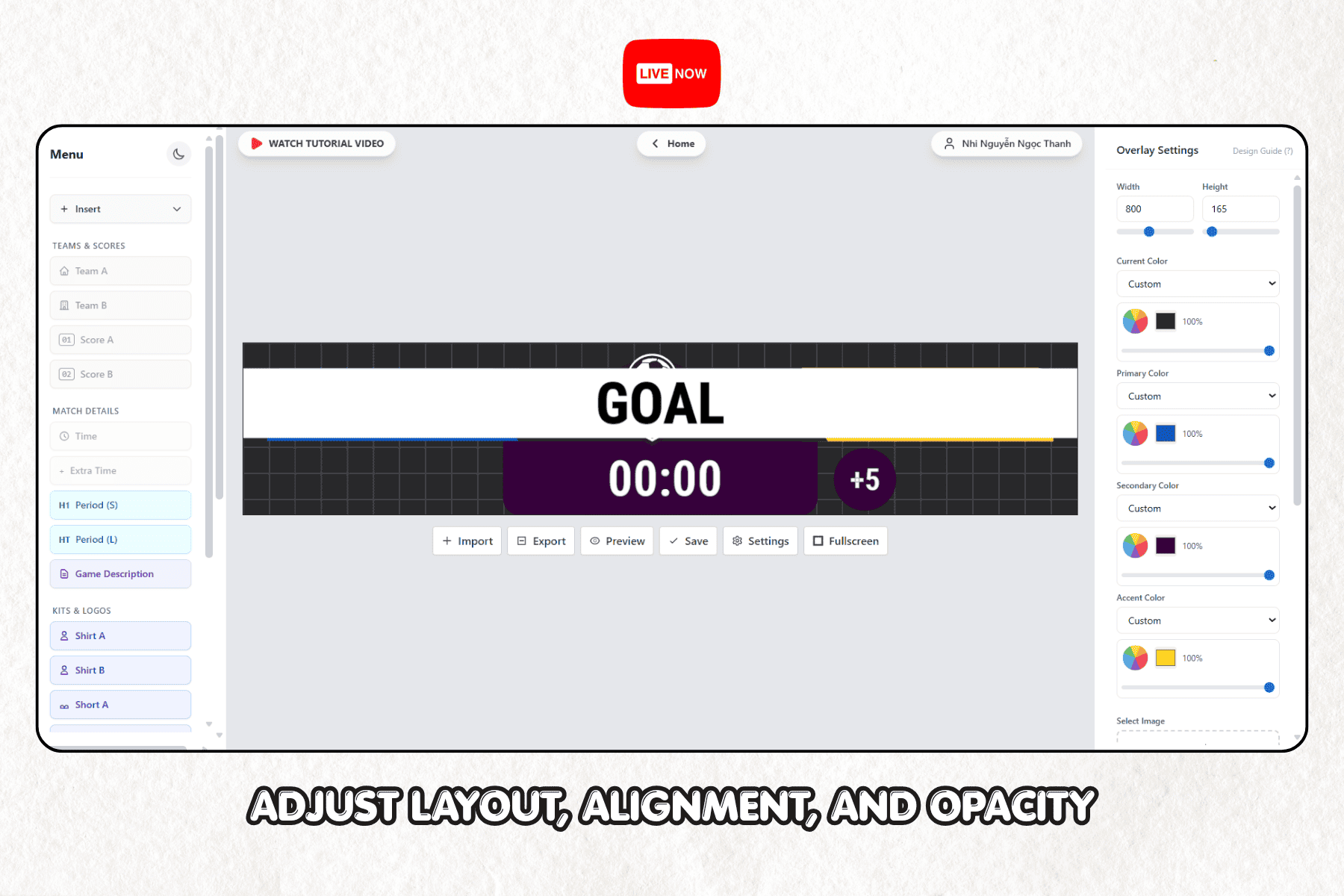
Back in the main Overlay Settings panel, fine-tune the scoreboard’s overall appearance. You can set the Background Color as solid or gradient, choose an accent color, upload a custom background image, and control alignment using the nine-point alignment grid. The Opacity slider lets you adjust how transparent or solid the entire scoreboard appears over your video feed, which is useful if you want the graphic to blend more naturally with the broadcast.
Step 6: Preview the GOAL Effect Before Exporting
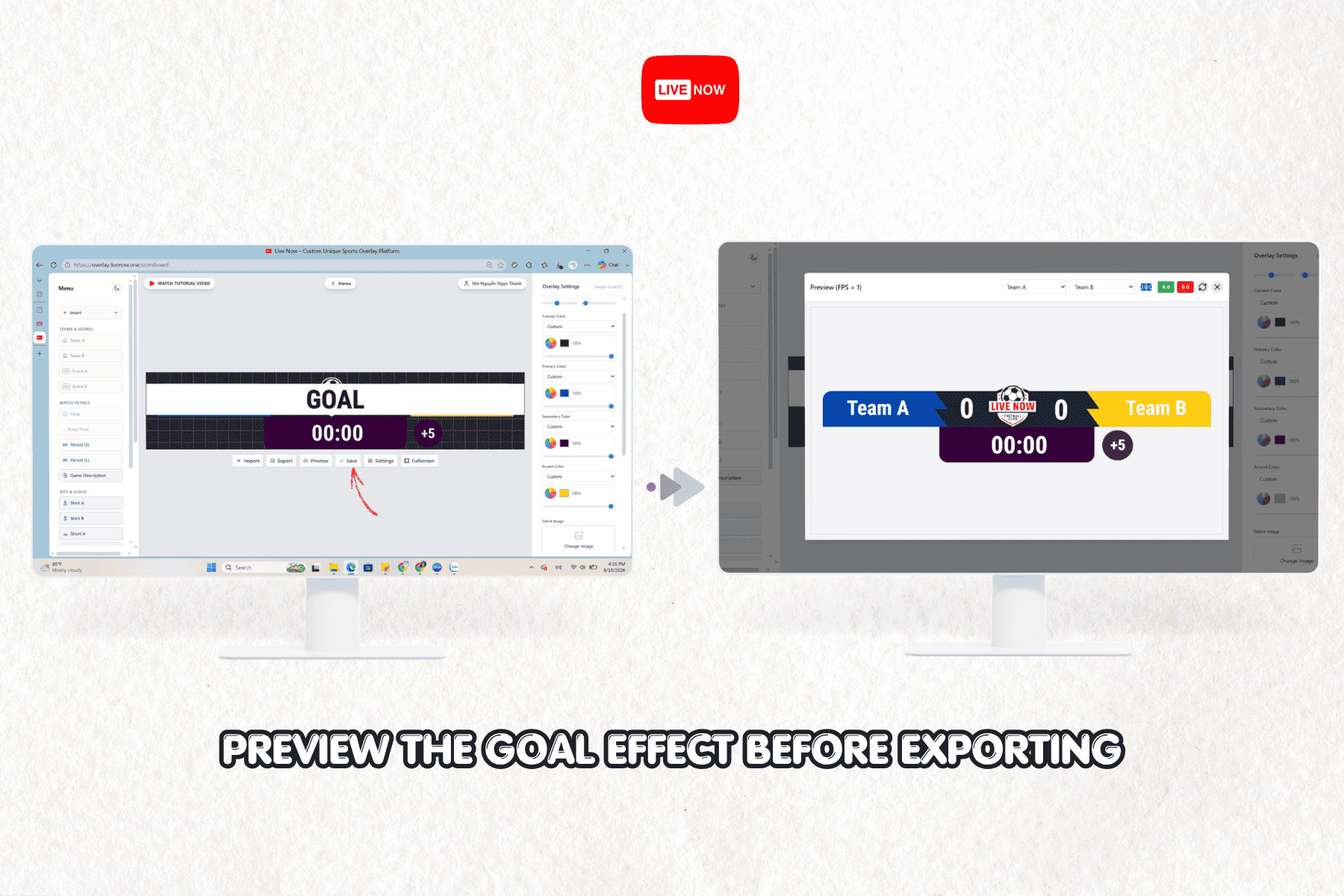
Click Preview to open a live testing window. This preview mode shows the scoreboard exactly as it will appear during a broadcast, and includes controls to simulate a goal for either team. Use the A and B team buttons in the preview toolbar to trigger the animation and confirm the timing, text placement, and transition look correct before you commit to the design. This step catches issues, such as overlapping text or animations that run too long, before they show up during an actual live match.
Ready to see your scoreboard in action? Download Livenow and preview your GOAL effect directly on your phone.
Step 7: Export the Scoreboard Template
Once you are satisfied with the preview, click Export. This generates the file format required to bring your custom scoreboard, including its GOAL animation settings, into the Livenow mobile app.
How to Import and Trigger the GOAL Effect During a Live Broadcast
With the scoreboard exported, the second half of the setup happens inside the Livenow app itself, where the overlay becomes part of your actual live stream.
Step 8: Import the Scoreboard Into the App
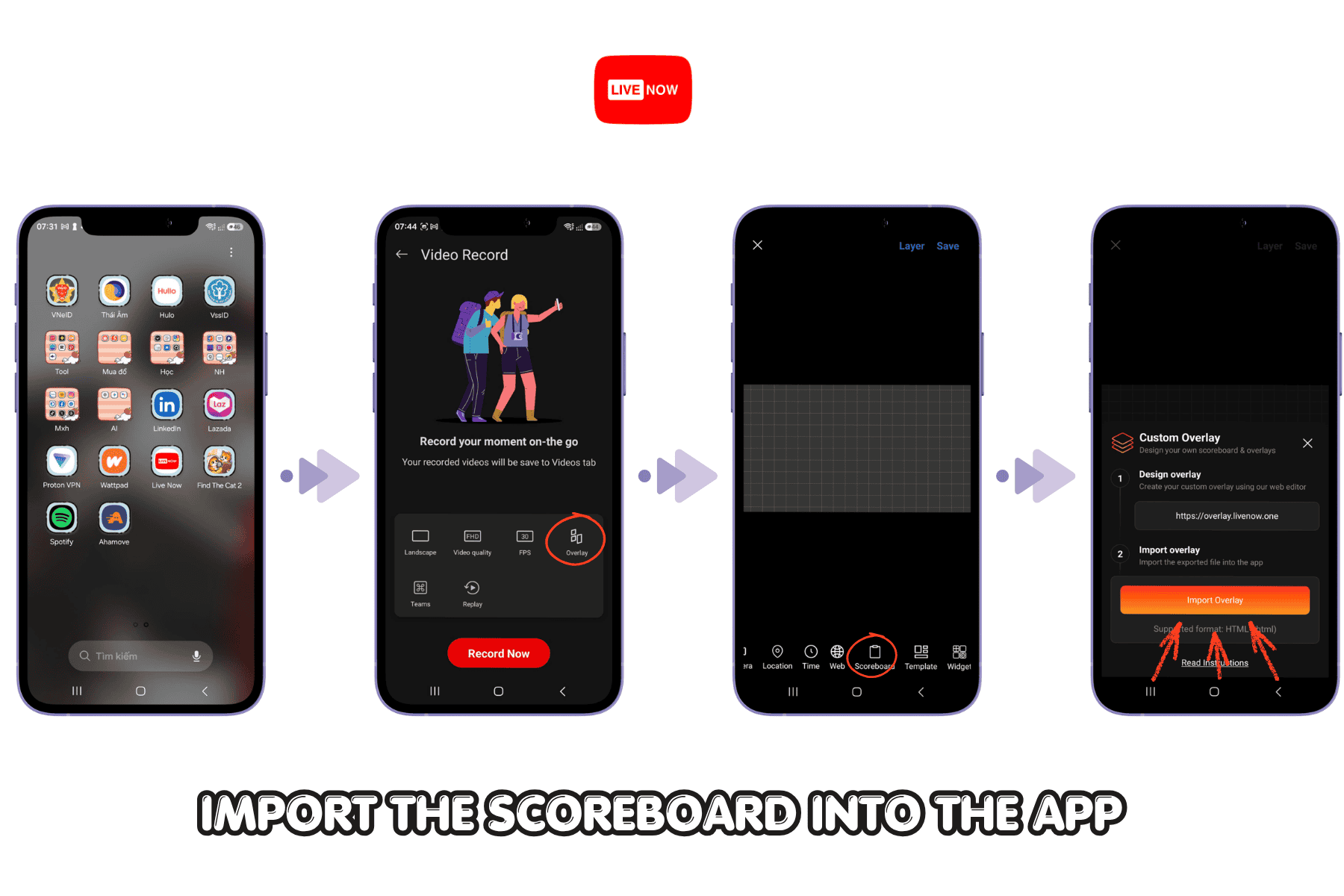
Open the Livenow app, start your broadcast setup, and tap the Overlay menu. Select Scoreboard, then choose Import Template. Locate the file you exported from the Overlay Designer and select it to bring your custom design, animation style, and GOAL text into your live layout.
Step 9: Adjust Final Details and Save
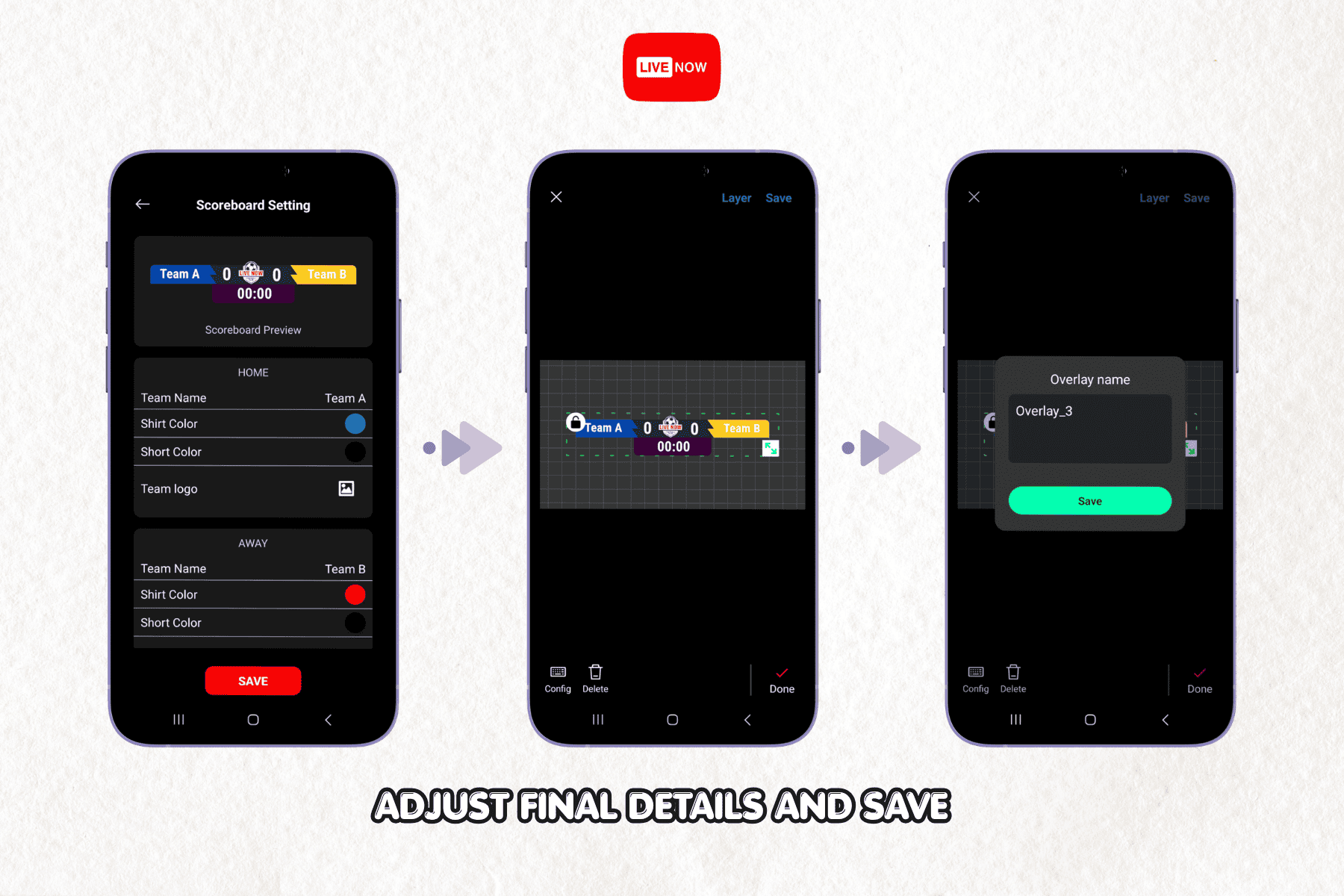
After importing, review the team names, starting score, and match clock settings to confirm everything matches your actual event. Make any last adjustments to layout or text, then tap Save to lock in the overlay for your broadcast.
Step 10: Trigger the GOAL Effect Live
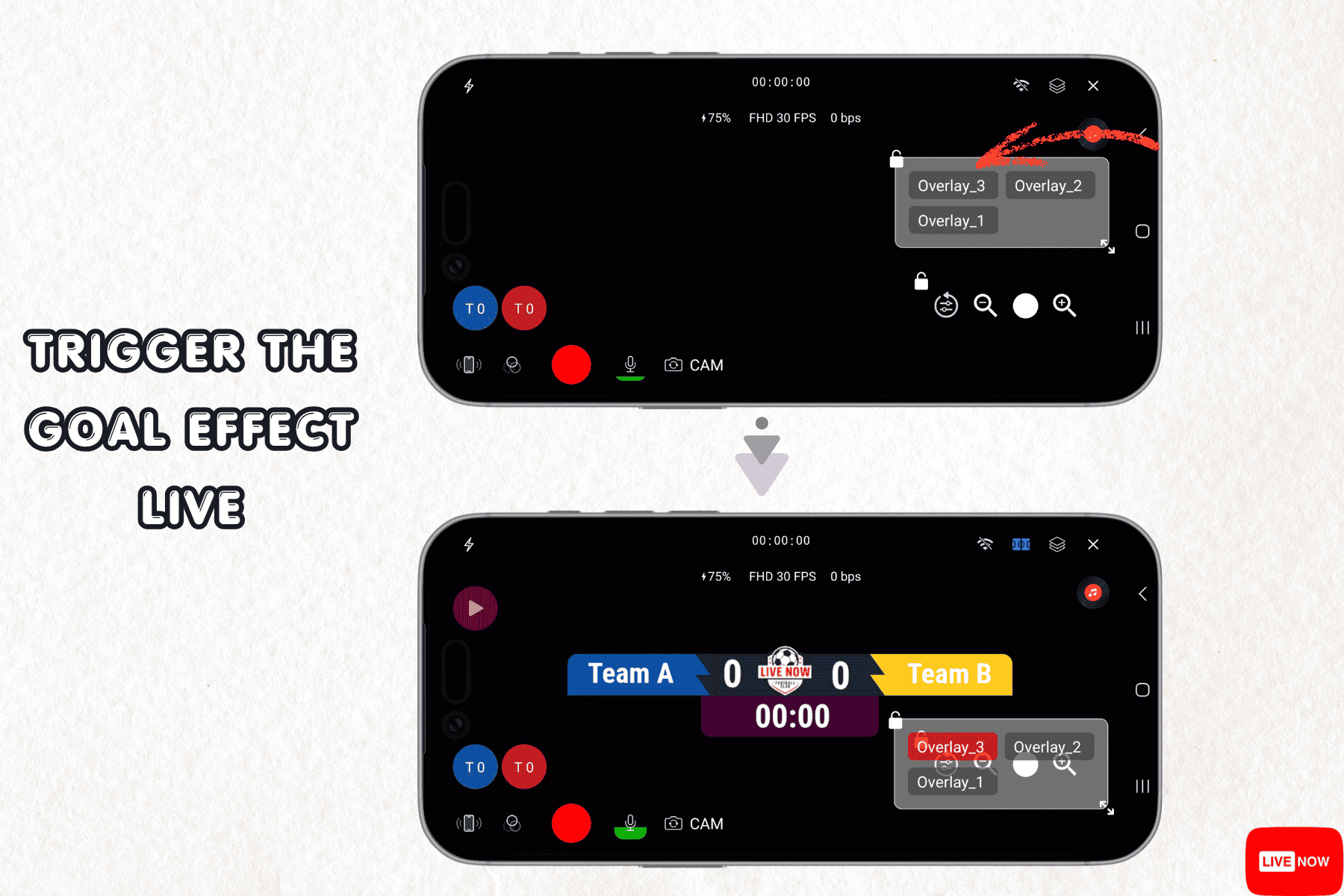
During the broadcast, tap the name of the scoreboard overlay you created. When a team scores, tap the score icon for that team directly on screen. The GOAL animation you configured earlier plays automatically, the score updates, and viewers watching your stream see the celebration in real time, matched precisely to the moment the goal happens on the field or court.
This live-triggered design means there is no delay between the real event and the on-screen celebration, which is exactly the kind of real-time responsiveness that keeps sports audiences engaged throughout a broadcast.
Best Practices for a High-Impact GOAL Effect
A technically correct overlay only performs well if it is also well designed for the viewing experience. Keep the following in mind.
Match the Animation Energy to Your Sport and Audience
A youth recreational match may call for a simple Flip or Slide Score animation, while a high-stakes tournament final might benefit from a more dramatic Firework or Cyber Glitch effect. Consider your audience’s expectations before locking in a style.
Keep Legibility a Priority on Mobile Screens
Since a large share of livestream viewers watch on a phone, test your GOAL text and animation at actual mobile screen size, not just on a large preview window. Text that looks fine on a desktop preview can become difficult to read on a five-inch display.
See how the GOAL effect looks on mobile before you go live. Get Livenow on Google Play or the App Store and test your design on the same device you will stream from.
Pair the GOAL Effect With Other Match Graphics
For a cohesive broadcast, align your GOAL effect’s color palette and typography with your other overlays, such as the Match Events feature used for cards and substitutions, or the Instant Replay feature used to replay the goal moment itself immediately after it happens. Many broadcasters follow a GOAL animation with an instant replay to give viewers a second, closer look at the score.
Verify the Animation in Preview Every Time You Reuse a Template
If you reuse the same scoreboard template across multiple matches, always run the Preview test again before going live. Confirm the team names, starting score, and animation trigger are all correctly set for the new event, rather than assuming the previous configuration carried over correctly.
Common Mistakes to Avoid
Choosing an animation that is too long. A GOAL effect that takes several seconds to fully play can start to feel repetitive if your match has many goals, particularly in basketball or futsal. Shorter animations tend to hold up better across a full match.
Skipping the mobile preview. Designing only on a desktop browser and never checking how the text and animation look on an actual phone screen is one of the most common reasons scoreboard graphics look off during a live broadcast.
Forgetting to update team names before each match. Reusing a saved template without updating team names, colors, or starting scores can lead to an obviously incorrect broadcast graphic during your opening minutes.
Not testing the trigger button under real conditions. Practice tapping the score icon during a mock run before your first live match, so triggering the GOAL effect becomes second nature during the actual broadcast when things move quickly.
Why Interactive Scoreboards Matter for Modern Sports Streaming
Sports audiences increasingly expect a broadcast-quality experience even from independently produced livestreams. A dynamic scoreboard with a custom GOAL effect signals a level of production quality that keeps casual viewers engaged and encourages them to keep watching through close, back-and-forth matches. Combined with other Livenow features, such as VAR Check for reviewing key football decisions, multi-camera streaming setups, and even interactive segments like a spin wheel draw overlay for tournament pairings, a broadcaster can build a complete, professional-feeling production entirely from a mobile device.
For events that need to reach audiences across several platforms at once, pairing your scoreboard setup with multistreaming to YouTube, Facebook, and Twitch ensures every viewer, regardless of where they are watching, sees the same real-time GOAL effect the moment it happens.
Build your own broadcast-quality scoreboard today. Start with Livenow and design your first GOAL effect in minutes.
A scoreboard overlay with a well-designed GOAL effect is a small production detail that makes a measurable difference in how engaging a live sports broadcast feels. From choosing the right animation style in the Overlay Designer to triggering it live with a single tap during the match, the entire workflow is built to run from a mobile device without any external editing software. Whether you are covering a local football match or a full basketball tournament, taking the time to configure a GOAL effect that matches your sport and audience gives your stream a level of polish that keeps viewers watching until the final whistle.
If you have not tried it yet, open the Overlay Designer, choose a scoreboard template, and set up your first custom GOAL effect before your next live match.
People Also Ask
How do I add a GOAL effect to my scoreboard overlay? Open the Overlay Designer at overlay.livenow.one, select Scoreboard Design, choose a template, then open Overlay Settings and select an animation style from the Score Animation dropdown, such as Flip, Firework, or Energy Ring. Preview the effect, export the template, then import it into the Livenow app to trigger it live during a broadcast.
Is the Livenow scoreboard overlay free to use? Livenow provides scoreboard design tools and score animation options directly through its app and Overlay Designer, downloadable from Google Play and the App Store. Specific features and pricing tiers may change over time, so checking the app’s current offering before your event is recommended.
Can I use a custom GOAL effect for basketball, not just football? Yes. The scoreboard and animation tools in the Overlay Designer are not limited to football. Broadcasters can select a different sport category, or start from a blank template, to build a scoring animation suited to basketball, futsal, volleyball, or other team sports.
Do I need any design experience to create a GOAL effect overlay? No. The Overlay Designer is built around pre-made templates and dropdown animation settings, so broadcasters can build a complete scoreboard with a working GOAL effect without prior graphic design or video editing experience.

