
Sports broadcasters, esports hosts, and community event organizers increasingly use a spin wheel draw overlay to turn a static broadcast into an interactive event. Instead of simply announcing match pairings or prize winners in text, a spin wheel overlay lets viewers watch the selection happen live, on screen, in real time. This guide walks through exactly how to design, import, and run a spin wheel (random draw) overlay for a live sports broadcast, using the Livenow mobile app and its companion Overlay Designer.
If you stream football brackets, basketball tournaments, giveaway draws, or any event that requires a random selection, this tutorial gives you a complete, mobile-only workflow. No desktop software, no OBS plugin, and no coding knowledge is required.
What is a spin wheel draw overlay?
A spin wheel draw overlay is a graphic layer added on top of a live video stream that displays a spinning wheel used to randomly select a team, number, or prize winner. It is created with an overlay design tool, exported as an HTML template, then imported into a live streaming app so the spin animation and results appear live on screen during a broadcast.
What Is a Spin Wheel Draw Overlay and Why Streamers Use It
A spin wheel draw overlay, sometimes called a lucky wheel, random draw, or bốc thăm overlay in Vietnamese-language streaming communities, is one of the most requested interactive graphics for tournament broadcasts. It replaces manual, off-screen draws (where an organizer picks numbers from a bowl or reads names from a spreadsheet) with an on-camera, visually engaging moment that keeps the audience watching.
Spin wheel overlays are commonly used for three purposes on a livestream: assigning tournament brackets or match pairings, selecting teams for a friendly match, and running audience giveaways during a broadcast. Because the wheel animation, the result panel, and the video feed are combined into a single overlay, viewers see everything happen in real time without the stream cutting away or pausing.
This kind of interactive segment is not just a cosmetic upgrade. Audience behavior data backs up why broadcasters keep adding these features. According to GetStream’s 2026 live streaming statistics report, gaming and sports content account for a significant share of total streaming hours in the United States, and platforms that build in-stream incentives, such as live draws and rewards, have measurably improved viewer retention. Separately, PubNub’s research on live video monetization notes that gamification elements like leaderboards and live draws are among the tools that most reliably increase viewer participation and time spent watching a stream.
(source: GetStream — “Live Streaming Statistics & Trends (2026): What Product Teams Need to Know”, PubNub — “Key Live Video Monetization Strategies for 2025”)
For a football final, a regional basketball tournament, or a community esports bracket, a spin wheel draw overlay gives the broadcast a clear, memorable moment that text commentary alone cannot deliver.
What You Need Before You Start
Before creating a spin wheel overlay, make sure you have the following ready:
- The Livenow app installed on your mobile device (available on Google Play and the App Store)
- A stable Wi-Fi or mobile data connection, since the overlay editor runs through a browser-based tool
- The names, numbers, or team labels you plan to use in the draw
- A general idea of your final scoreboard or event branding, so the wheel overlay matches the rest of your broadcast
Livenow’s overlay system is built specifically so that sports and event broadcasters do not need a laptop, a separate graphics designer, or any video editing background. Everything, from design to live playback, happens inside the mobile workflow.
Where the Spin Wheel Overlay Fits Into Your Broadcast Setup
If you already use Livenow for football or basketball broadcasts, the spin wheel overlay works alongside features you may already be familiar with, such as dynamic scoreboards for live sports and custom overlay design tools. The draw overlay is built using the same Overlay Designer, so the workflow will feel familiar if you have created a scoreboard template before.
Step-by-Step: Designing the Spin Wheel Overlay
The first half of the process happens inside Livenow’s browser-based Overlay Designer, accessible from any mobile or desktop browser at overlay.livenow.one. This is where you build the visual template before importing it into the live streaming app.
Step 1: Open the Overlay Designer
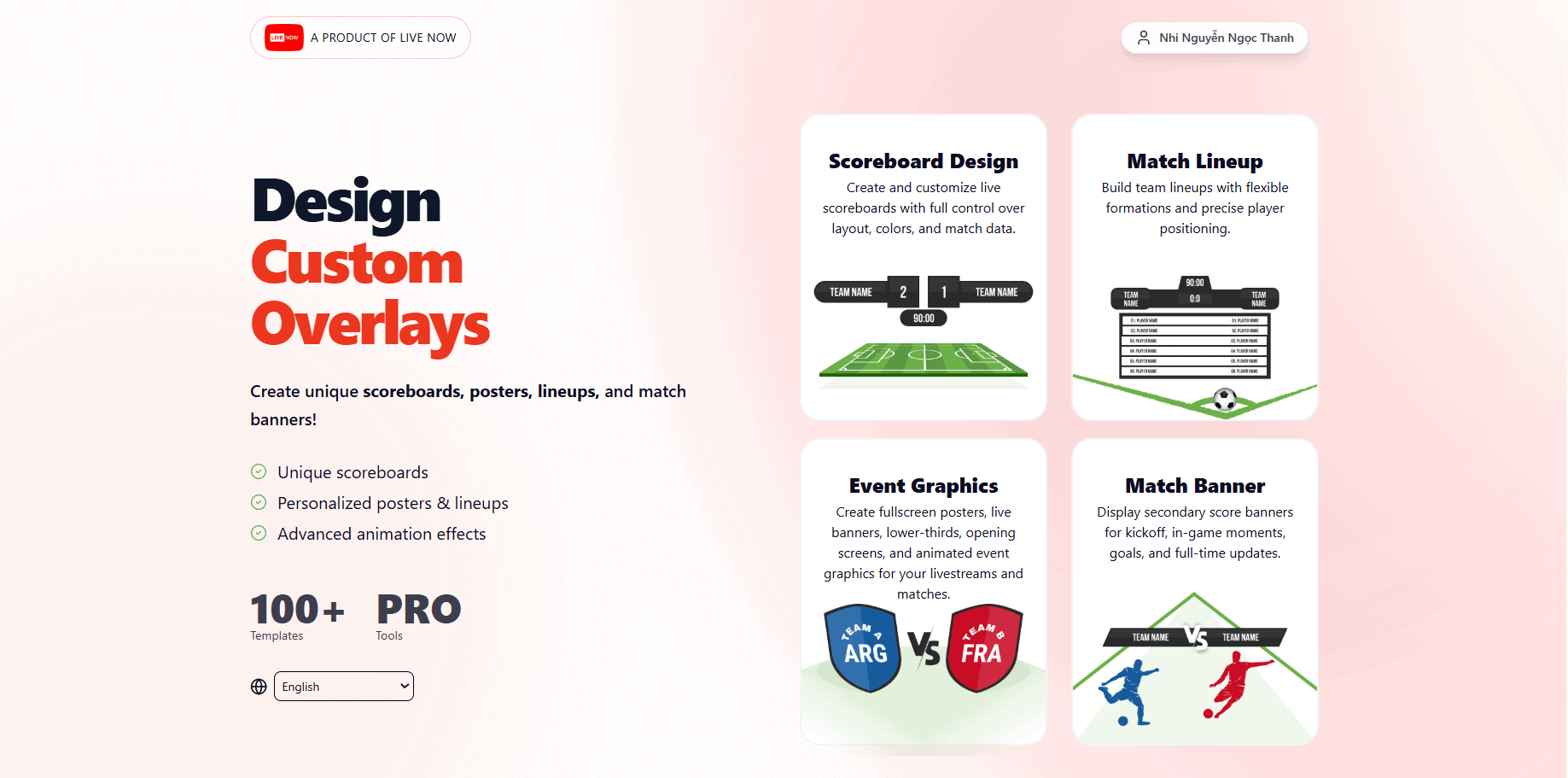
Go to https://overlay.livenow.one in your browser. This is the same design tool used for building custom scoreboards and match overlays, so if you have used it before for a scoreboard, the interface layout will be familiar.
Step 2: Choose Event Graphic, Then Lucky Wheel
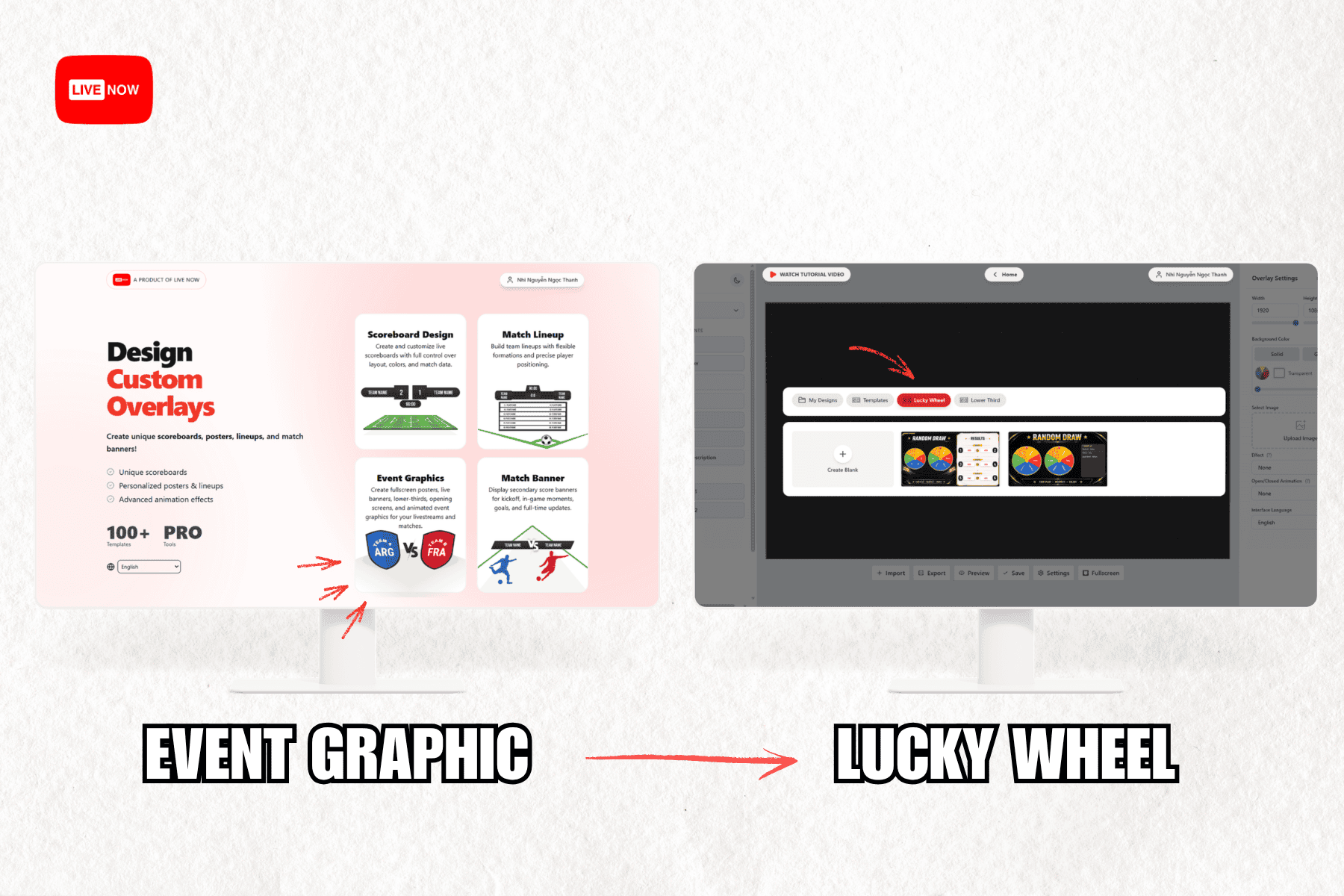
Inside the editor, select the Event Graphic category, then choose Lucky Wheel from the available templates. You will see a set of ready-made spin wheel templates. You can either pick one of these pre-built layouts or start from a blank canvas and design your own wheel structure from scratch.
Step 3: Customize the Template to Match Your Broadcast
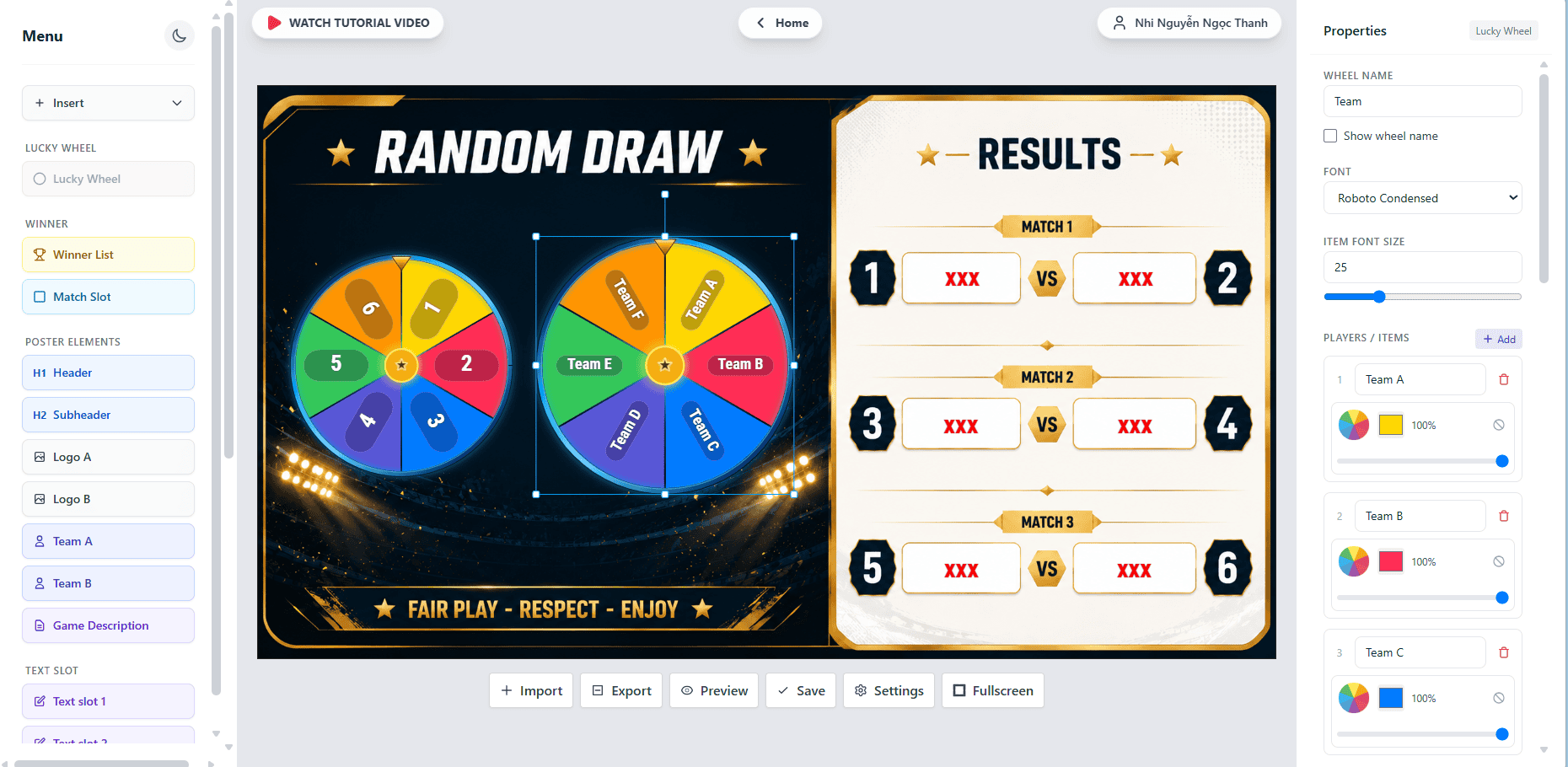
Once a template is selected, you can adjust it to fit your event branding. Typical customization options include:
- Background color, image, or gradient
- Number of wheel segments (for example, six teams or six numbers)
- Text labels on each segment, such as team names or match numbers
- Colors for each segment to make results easy to read on camera
- Result panel styling, including headers such as «RESULTS» and match slots
This is also where you configure whether the wheel selects numbers, team names, or both, similar to a two-wheel setup where one wheel picks a slot number and the second wheel assigns the team.
Try it now Open the Overlay Designer at overlay.livenow.one and start building your first spin wheel template today.
Step 4: Preview and Export the Template
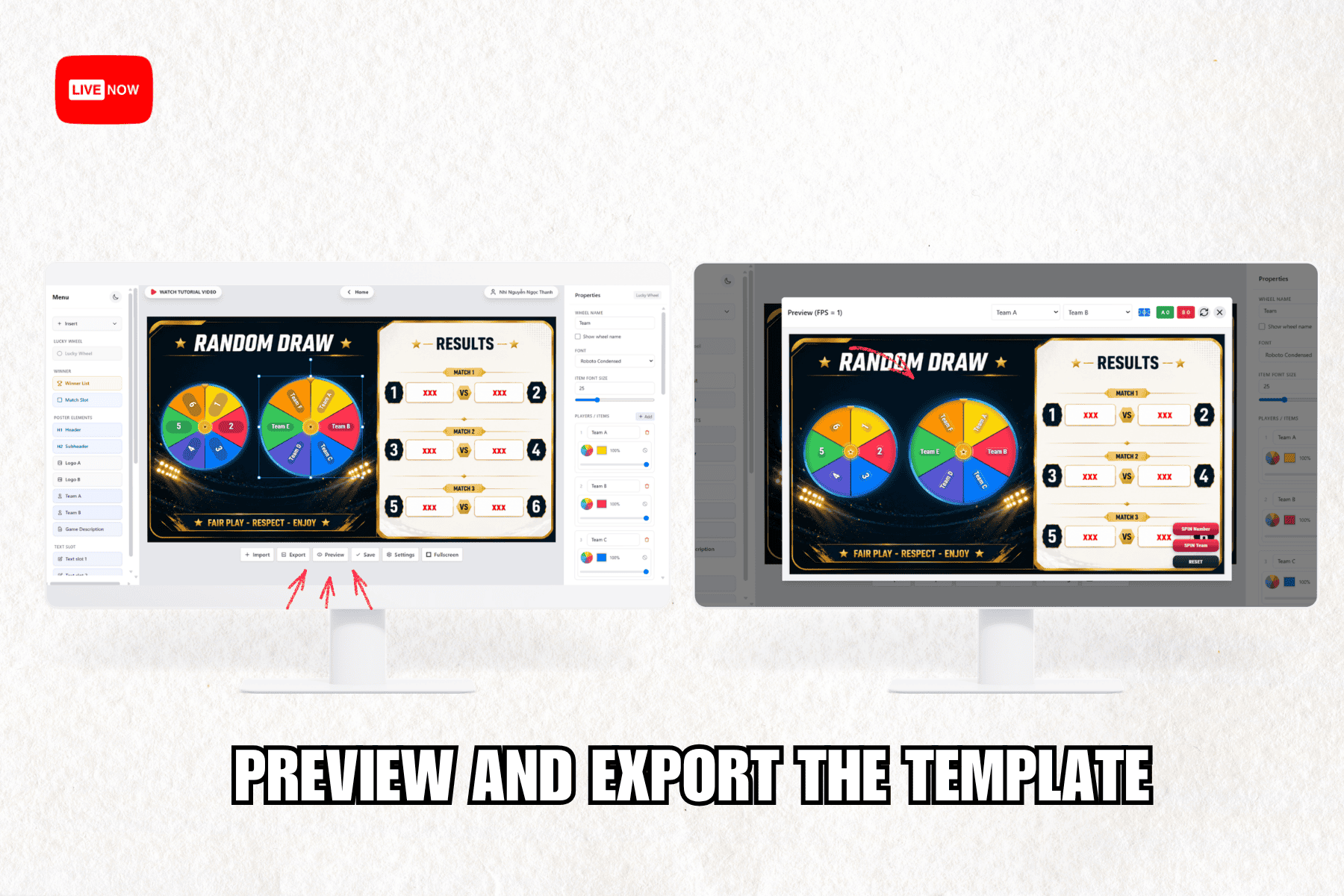
Before exporting, use the Preview button inside the editor to test how the wheel spins and confirm the layout looks correct at broadcast resolution. Once you are satisfied with the design, export the template. The Overlay Designer generates an HTML file, which is the format required for import into the Livenow mobile app.
How to Import the Spin Wheel Overlay Into the Livenow App
With your template exported, the second half of the workflow takes place inside the Livenow app itself.
Step 5: Open the Overlay Menu and Import the Template
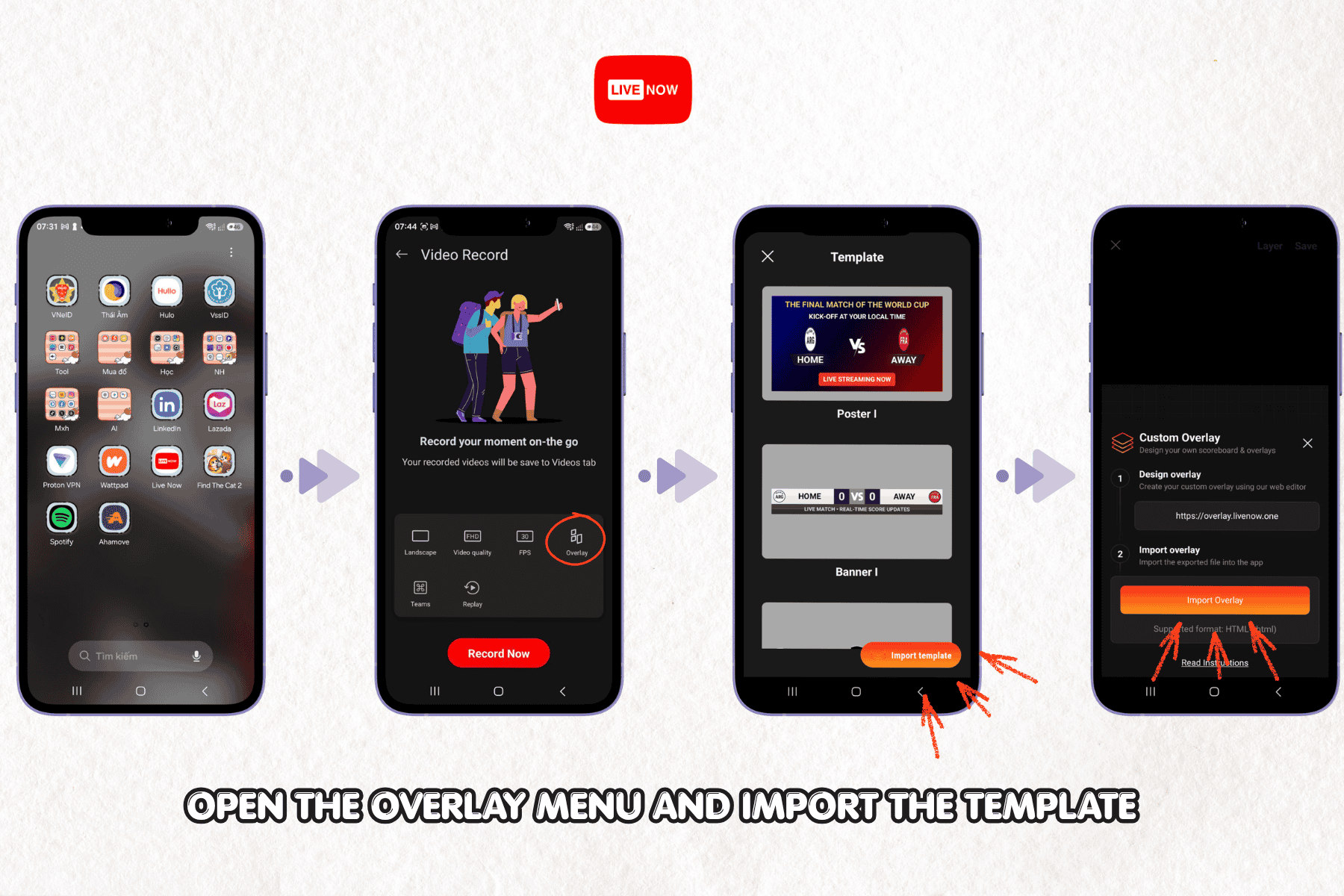
Open the Livenow app on your phone and start a new broadcast setup. From the recording or streaming screen, tap the layers icon to open the side menu, then select Overlay. Inside this menu, choose Template, then tap Import Template, followed by Import Overlay. Select the HTML file you exported from the Overlay Designer in the previous step.
The import screen clearly shows the supported file format (HTML) along with a direct shortcut back to the web editor, so if anything needs adjusting, you can return to the design tool without losing your progress.
Step 6: Adjust Overlay Text and Save
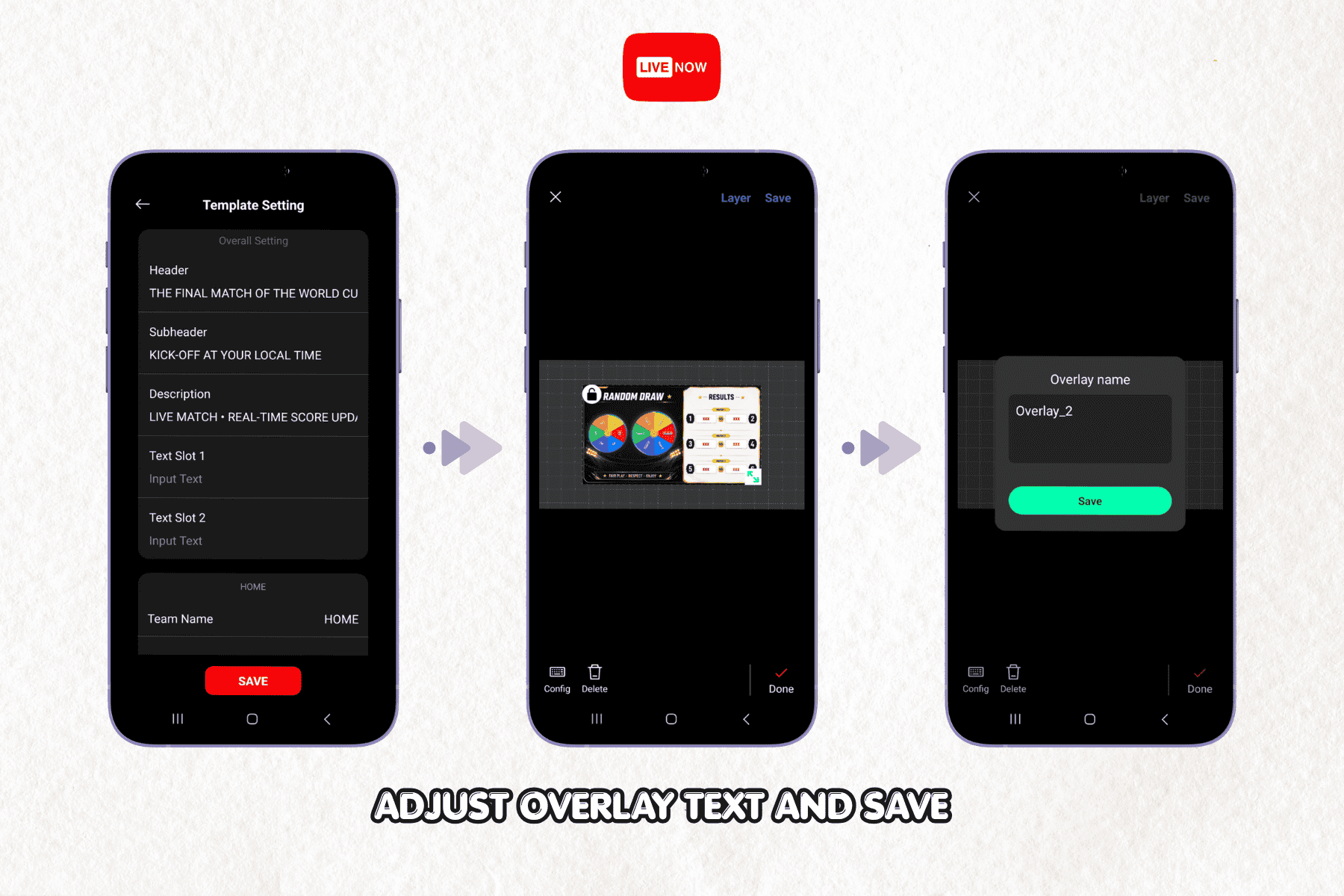
After importing, tap into Template Setting to review and edit the text fields tied to your overlay, such as the header, subheader, description, and any additional text slots. For example, a football final draw overlay might use a header like «THE FINAL MATCH OF THE WORLD CUP» and a subheader like «KICK-OFF AT YOUR LOCAL TIME.» Once the details are correct, tap Save.
Ready to build your own draw graphic? Download Livenow and set up your first spin wheel overlay in minutes.
Step 7: Open the Controller and Run the Draw Live
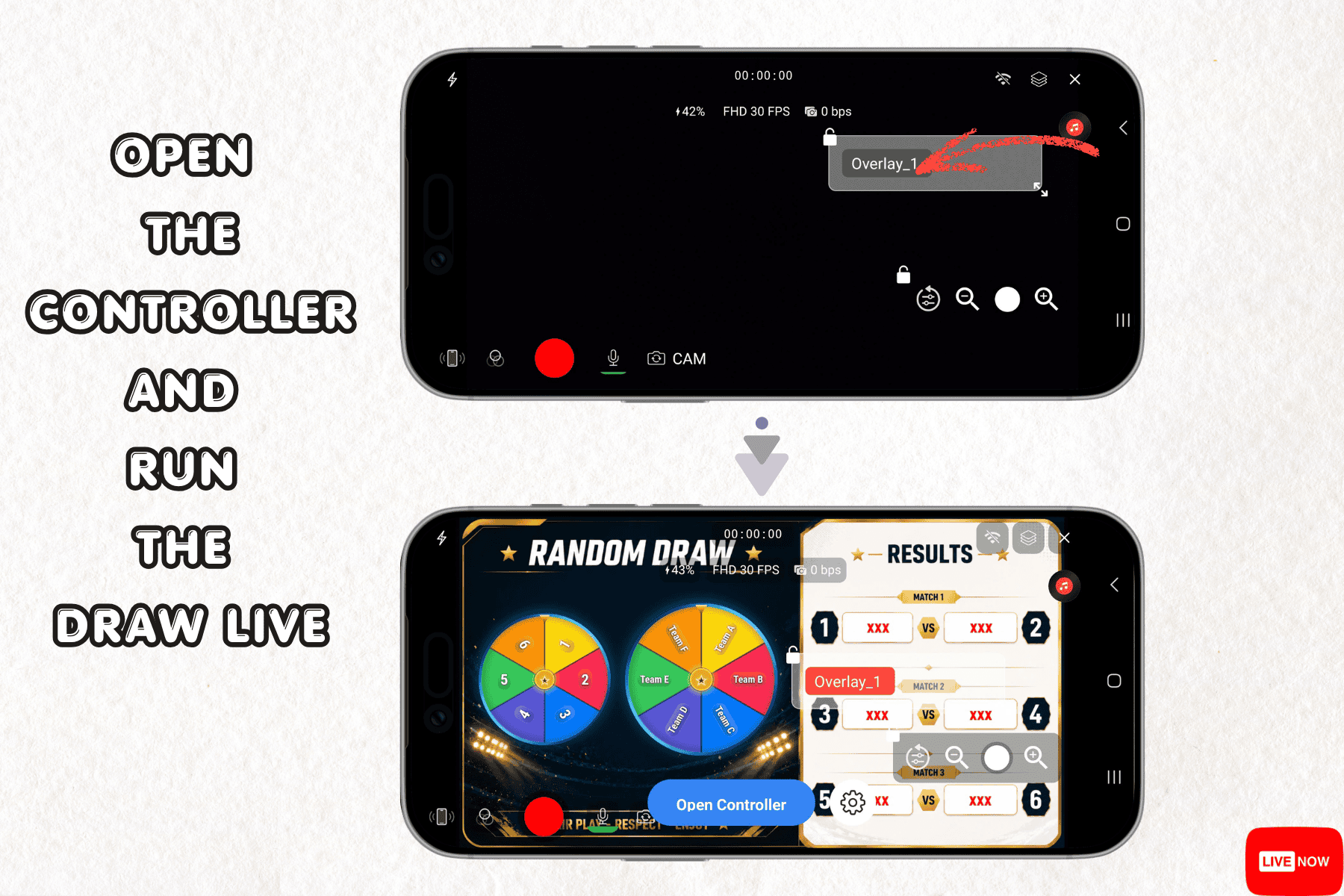
With the overlay saved and active on your broadcast screen, tap Open Controller. This brings up the live control panel with two main actions: SPIN Number and SPIN Team, along with a RESET button to run the draw again if needed. When you tap either spin button, the wheel animates on screen in real time, and the winning result automatically populates into the results panel, visible to your live audience without needing to cut away from the broadcast.
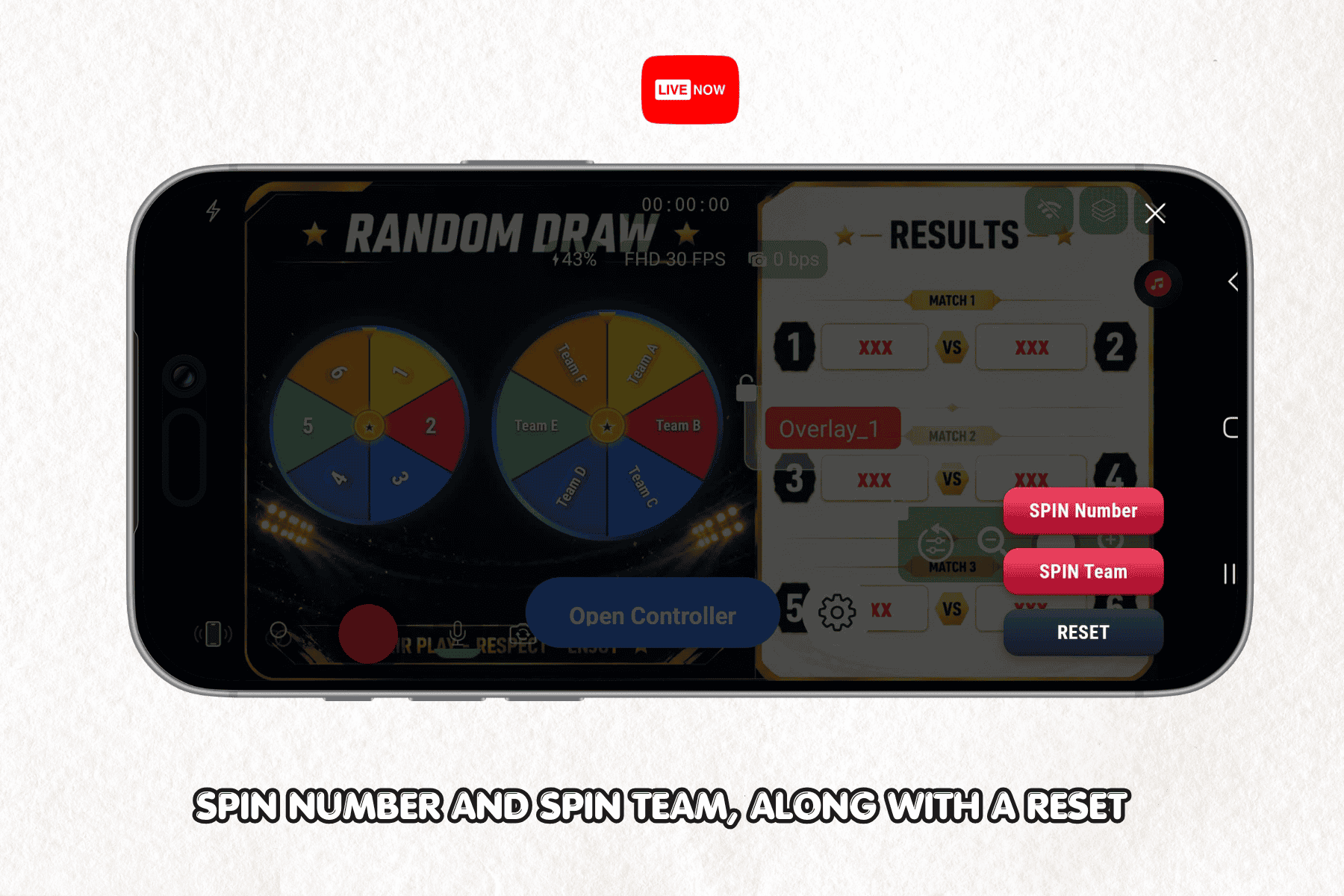
This is the moment that makes the feature worthwhile: viewers see the exact same spin, in real time, that you see as the broadcaster. There is no pre-recorded reveal and no delay between the spin and the on-screen result.
Best Practices for Using a Spin Wheel Overlay During a Broadcast
A well-designed spin wheel overlay only performs well if it is used at the right moments and configured correctly. Consider the following practices when planning your draw segment.
Time the Draw for Maximum Engagement
Place the spin wheel segment at a moment when your audience is already tuned in and attentive, such as right before kickoff or at a natural break in commentary. Research on live audience behavior, including PubNub’s engagement research, consistently shows that interactive segments perform best when viewers are actively watching rather than passively listening in the background.
Keep Segment Labels Short and Legible
Since the wheel is viewed on mobile screens as often as on larger displays, keep team names, numbers, and labels short. Long text strings can be difficult to read once the wheel is spinning at full speed.
Test the Draw Before Going Live
Always run a test spin using the Controller before starting your actual broadcast. This confirms the wheel animation, result panel, and text fields are displaying correctly, and it avoids technical surprises during a live event.
Want to see how the spin wheel overlay looks in your own broadcast layout? Try Livenow on Google Play or the App Store and preview it before your next live match.
Pair the Draw With Your Existing Match Graphics
For sports broadcasts, the spin wheel overlay works best when it is visually consistent with your other in-stream graphics. If you already display goal events or cards using the Match Events feature, or highlight key moments with Instant Replay, aim to match your draw overlay’s color palette and typography to those existing elements so the broadcast feels like one cohesive production.
Announce the Draw Segment in Advance
Viewers are more likely to stay tuned in for a live draw if they know it is coming. Mention the upcoming spin wheel segment in your stream title, in a pinned chat message, or verbally a few minutes before the draw begins. This small step reduces drop-off during the lead-up and increases the number of viewers who actually see the result live, rather than catching it later in a replay.
Plan for Multiple Rounds if Your Format Requires It
Tournament formats with several rounds of pairings benefit from a clear on-screen structure, such as the numbered match slots shown in a typical results panel. Before your broadcast, map out how many spins you expect to run and in what order, so the segment moves smoothly without long pauses while you decide what to draw next. Having this sequence planned ahead of time also makes it easier to keep commentary flowing between each spin.
Common Mistakes to Avoid When Setting Up a Draw Overlay
Even a simple overlay can run into avoidable issues. Here are the most frequent mistakes broadcasters make when setting up a spin wheel draw graphic.
Skipping the preview step. Exporting a template without previewing it first can result in text overflow, mismatched colors, or a wheel that does not display correctly at your stream’s resolution.
Using an unstable internet connection during import. Since the Overlay Designer is browser-based, importing on a weak connection can interrupt the file transfer. Use Wi-Fi where possible for the design and export steps.
Forgetting to update text fields for each new event. If you reuse the same overlay template across multiple broadcasts, remember to update headers, subheaders, and team labels each time. Leaving placeholder text like «XXX» visible during a live draw looks unfinished to your audience.
Not testing the RESET function. If your event requires multiple draws (for example, several rounds of a tournament bracket), confirm the RESET button clears prior results correctly before you go live.
Why Interactive Overlays Matter for Football and Basketball Broadcasts
Sports broadcasting has moved well beyond simple camera-and-commentary setups. Viewers increasingly expect a production style closer to what they see on professional sports channels, including dynamic scoreboards, instant replays, and now, interactive draw segments. Livenow’s mobile-first approach means all of these production tools, including the free scoreboard overlay for live sports, the VAR Check feature for football, and multi-camera streaming setups, are accessible from a single app without any external hardware.
For tournament organizers specifically, a spin wheel draw overlay solves a practical production problem: how to run a fair, transparent, and entertaining selection process without leaving the live broadcast. Combined with multistreaming to platforms like YouTube, Facebook, and Twitch, a single draw segment can reach every audience your event has, at the same time, with the same result.
Bring your next tournament draw to life on stream. Get started with Livenow and design your first spin wheel overlay today.
A spin wheel draw overlay transforms a routine selection process into a genuine broadcast moment. With Livenow’s Overlay Designer and mobile app, the entire workflow, from designing the wheel template to running the live spin, happens without a desktop computer, external software, or technical production experience. Whether you are organizing a football bracket draw, a basketball matchup selection, or a live audience giveaway, this feature gives your broadcast a level of interactivity that keeps viewers watching and engaged from the first spin to the final result.
If you have not tried it yet, open the Overlay Designer, build your first template, and bring it into your next live broadcast with Livenow.
People Also Ask
How do I create a spin wheel overlay for a live stream? Open the Overlay Designer at overlay.livenow.one, select Event Graphic, then Lucky Wheel, and customize the template with your team names, numbers, and branding. Preview the design, export it as an HTML file, then import it into the Livenow app through the Overlay menu to use it during a live broadcast.
Is Livenow free to use for sports live streaming? Livenow offers core mobile live streaming features, including scoreboards, overlays, and multistreaming, directly through the app, which can be downloaded from Google Play or the App Store. Specific features and template options may vary, so checking the app’s current offering is recommended before your broadcast.
Can I use the Livenow spin wheel overlay for both football and basketball streams? Yes. The spin wheel overlay is not sport-specific, so it can be used for football bracket draws, basketball matchup selections, esports pairings, or general audience giveaways during any live broadcast created with the Livenow app.
Do I need a computer to design and use a spin wheel overlay in Livenow? No. The entire workflow, from designing the template in the Overlay Designer to importing it and running the live spin through the Controller, is built for mobile devices. No desktop software or external editing tools are required.


